On this page
Asking for a review only works if it’s easy. A customer who taps a link and lands straight on the box to write a review will often do it there and then. One who lands on your business’s page, and has to scroll and find the right button, often won’t.
That’s the difference between your review link and the other links Google gives you, and it’s easy to mix them up. We did it ourselves while building our free review kit: a link from the Share button looked right, and opened the business’s page instead of the review form.
What a review link does
Your review link takes customers straight to the box where they leave a review. One tap, and they’re choosing their stars and typing. It’s the easiest way you can make it for them, and that’s what gets more of them to actually do it.
Without it, you’re asking a lot more of someone who’s only half-minded to help:
- Search Google for your business, and hope it comes up first.
- Pick out your listing from the results and the map.
- Find the reviews, then the button to write one, which on a phone is often well down the page.
Every one of those steps is a chance to give up, get distracted or leave it for later and forget. With the link, there are no steps: it opens at the review box, with your business’s name at the top.
Google’s tips on getting reviews suggest sending this link, or a QR code that opens it, after a job, a visit or a purchase. If you only do one thing to get more reviews, make it this.
Where to find it
It’s easiest on a computer. You need to be signed in to the Google account that manages your Business Profile. Then, following Google’s steps:
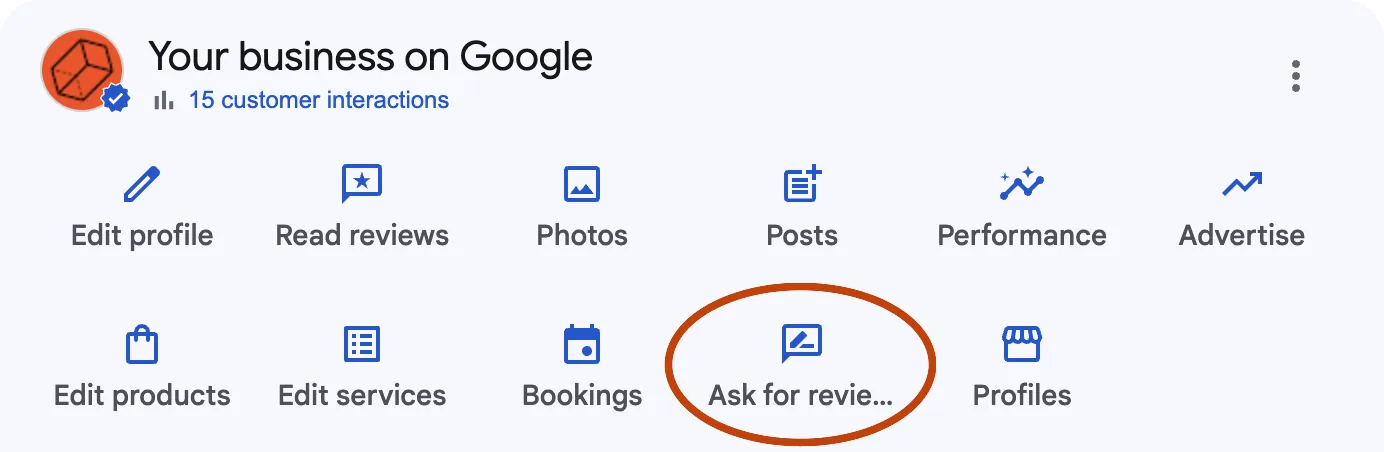
- Search Google for your business name. Your profile appears with a panel of buttons for managing it, which only you can see.
- Choose Ask for reviews. If you don’t see it, choose Read reviews, then Get more reviews.
- A box called Get more reviews opens. Your link is under Review link. Choose the copy button beside it, and it’s ready to paste into a message, an email or our review kit.
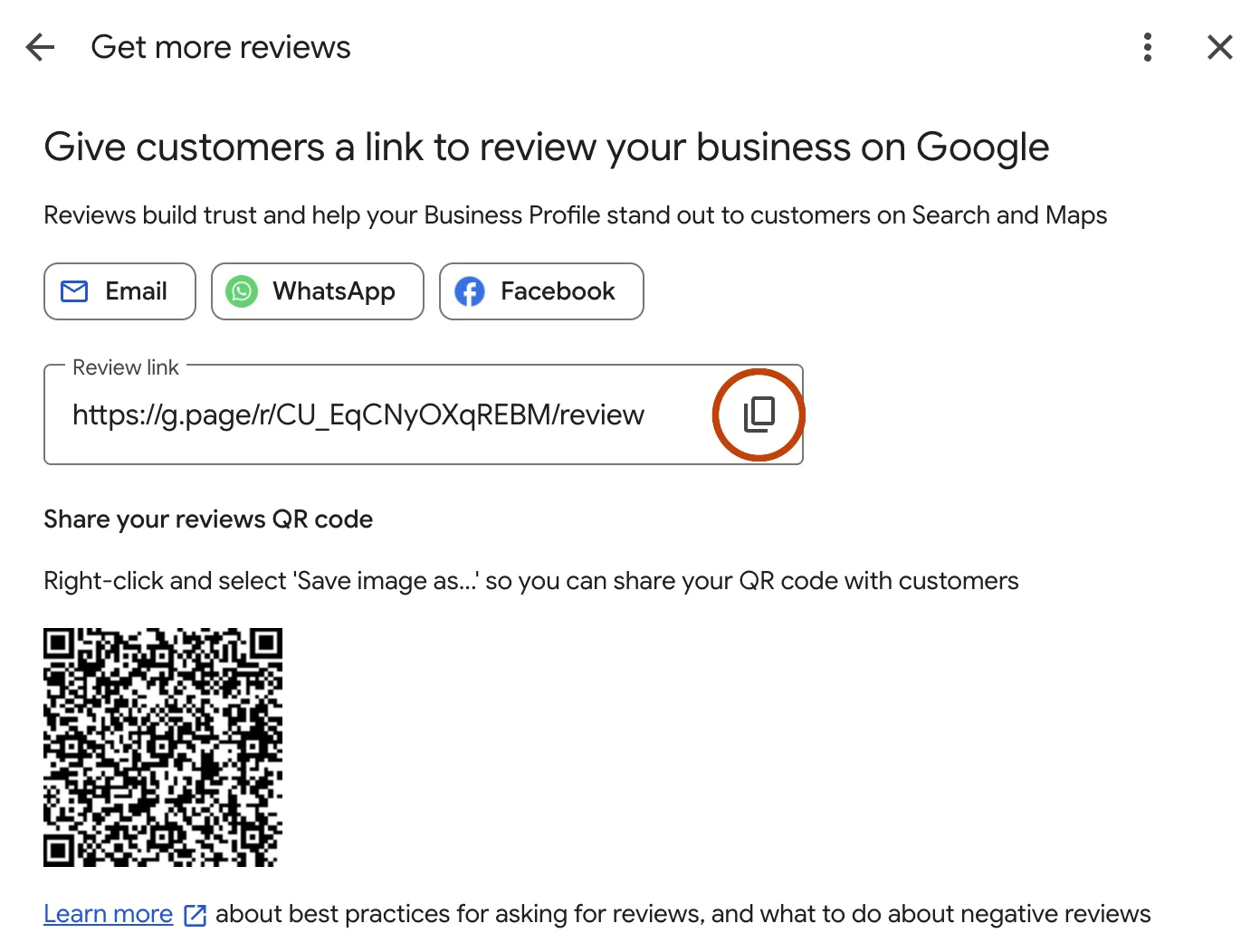
The same box can share the link by email, WhatsApp or Facebook, and shows a QR code. Google says its QR codes can only be made on a computer, not on a phone, but you can make one from your link anywhere with our review kit.
The Share link isn’t the same
The links from Get more reviews that we’ve seen look like g.page/r/…/review, or a long search.google.com/local/writereview address. Google doesn’t say what its review links will always look like, so the surest test is the next step.
Check it works
Before you print it or send it to anyone:
- Open the link on your phone, or scan its QR code with your phone’s camera.
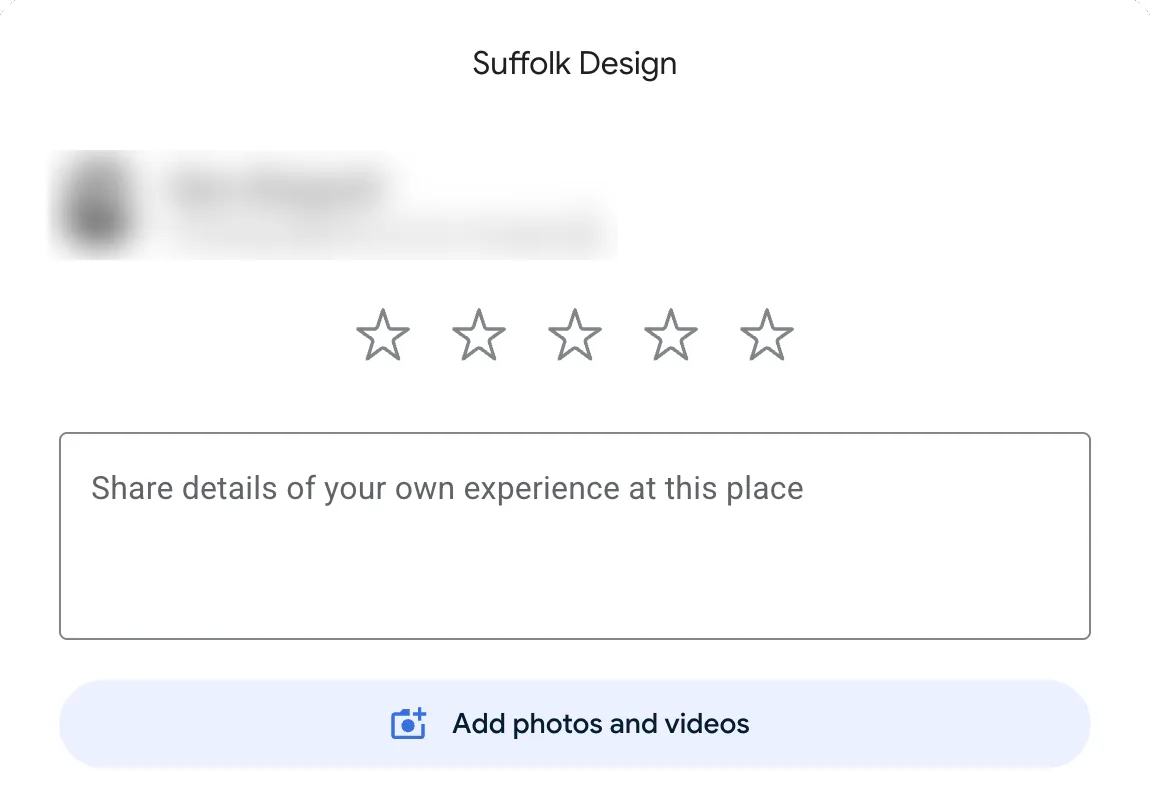
- You should see your business’s name, five stars and a box to write in, like this:
- If you see your business’s page instead, with photos, opening hours and directions, you’ve got the Share link. Go back to Ask for reviews and copy that one.
Where to use it
Once you have it, put it where customers already are: the end of your invoices and receipts, a thank-you message after a job, your email signature and a printed card on the counter.
Our free review kit turns your link into a card with a QR code, ready to print, and messages to copy and send. If we built your website, the same tool is in your website’s admin, under Reviews: save your link there once and it’s ready whenever you need it.
For when and how to ask, and the rules Google sets, read our guide to getting more reviews without being awkward.
A quick checklist
- Signed in to the account that manages your Business Profile
- Copied the link from Ask for reviews, not from Share
- Opened it on your phone, and it shows the review box
- Saved it somewhere you’ll find it again
Last reviewed November 2026
Sources
- Create a Google link or QR code to request reviews, Google Business Profile Help
- Tips to get more reviews, Google Business Profile Help